
Send a Document to be Signed
With signerX.com, you can create and send documents on the fly using our in-app, create-from-scratch tool.
In this article
Visit your signerX.com dashboard > Create > Send for Signature > Choose.
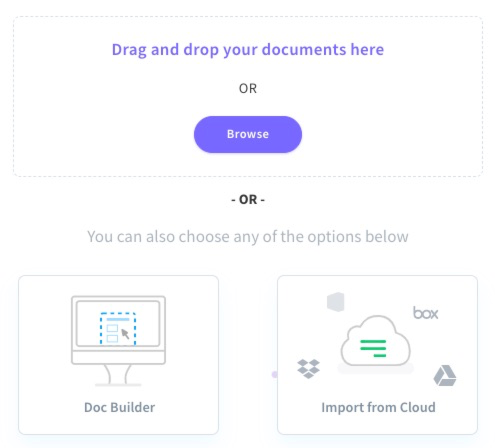
Upload a PDF
1. Select Browse in the "drag and drop document" section.
2. Choose your PDF > review and edit the title as needed > Next.
3. Type your recipient name > type your recipient email > Add Recipient.
Add another recipient if desired or select Next.
4. Add your fields using the field mapping step > Next. You can find more information about how to do so in this helpful article.
5. Review your Package Summary, editing the Signing Reminder Email settings, completion options, and storage options.
6. When your document is ready to go, select Send Package.
Doc Builder
1. Select Use the Doc Builder > add a document title.
2. Add your document content by typing or pasting your text in the document body.
3. Customize the document formatting using the Doc Builder options like choosing a font, using text alignment options, etc.
4. Select Save & Exit > review and edit the title as needed > Next.
5. Type your recipient name > type your recipient email > Add Recipient.
Add another recipient if desired or select Next.
6. Add your fields using the field mapping step > Next. You can find more information about how to do so in this helpful article.
7. Review your Package Summary, editing the Signing Reminder Email settings, completion options, and storage options.
8. When your document is ready to go, select Send Package.
Import from Cloud
1. Select Import from Cloud > Google Drive or Dropbox.
2. Search your folders to find your package > choose your package > Upload.
3. Review and edit the title as needed > Next.
3. Type your recipient name > type your recipient email > Add Recipient.
Add another recipient if desired or select Next.
4. Add your fields using the field mapping step > Next. You can find more information about how to do so in this helpful article.
5. Review your Package Summary, editing the Signing Reminder Email settings, completion options, and storage options.
6. When your document is ready to go, select Send Package.